All about After Effects templates and how to use them

Using After Effects templates is one of the easiest ways to speed up your editing workflow and unlock motion design skills without spending years learning advanced animation. Templates let you drop your footage, text, or branding specifications into pre-built animations. This saves time and keeps your work looking polished. Many editors rely on templates to build intros, titles, slideshows, logo reveals, lower thirds and motion graphics that would take hours to create from scratch.
Once you understand how to download and customize them, templates become one of the most powerful tools in your creative process. This tutorial walks through what After Effects templates are, how they work, the difference between AEP files and MOGRT files, how both formats fit into your workflow, and how to customize templates using real examples.
Table of contents
What are After Effects templates?
After Effects templates are pre-made projects created by professional motion designers. Inside each template you will usually find text placeholders, color controls, pre-built animations, and comp structures that help you drop in your own content like footage or still images.
These projects function like ready-to-edit blueprints. All you have to do is download the template, open the project, replace the placeholder content, adjust the settings, and then render out the results for your own customized video!
The benefits of using templates in After Effects
Using After Effects templates gives editors a fast way to incorporate complex effects without building them by hand. You can use templates for transitions, lower thirds, openers, social media packages, typography animations, and almost any other motion graphic.
Templates help you stay focused on the message and the pace of the video while taking care of the heavy lifting happening behind the scenes.
Template type 1: AEP files
Most templates come in two formats. The first format is the standard AEP file, which opens directly inside After Effects.
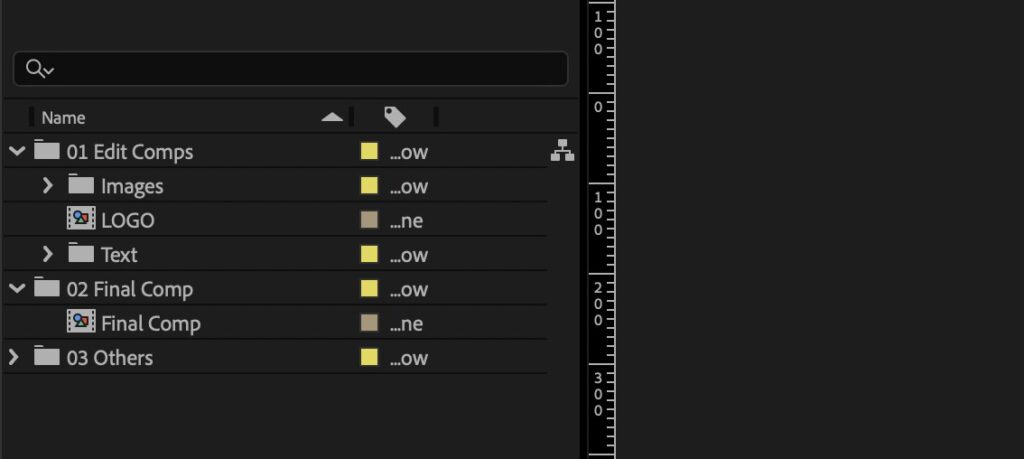
When you open an AEP template, you gain full access to all the pre-comps, layers, effects, and structure that the designer created. You can change timing, modify colors, swap graphics, and even rebuild elements from the ground up if you want full control. The file structure will look similar to the image seen above.
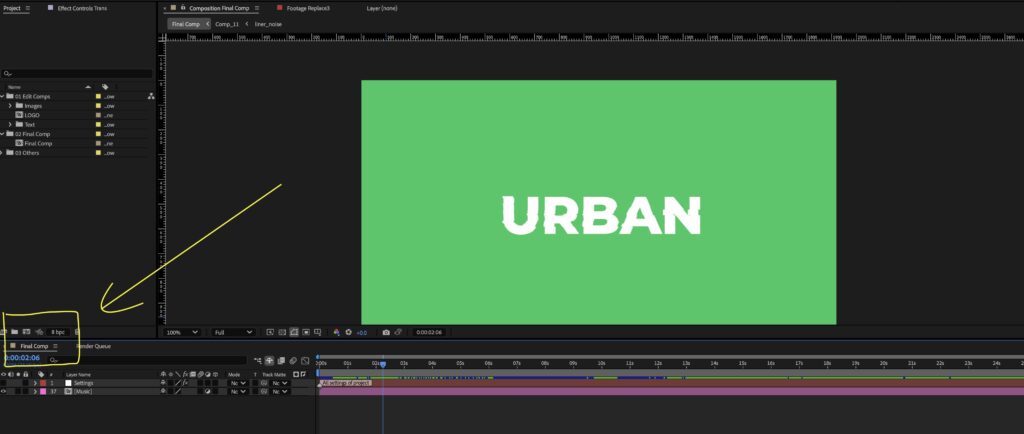
The full version of the template can be viewed and navigated from the Final Comp (as seen above), it consists of folders and comps that you open up and customize on your timeline.
Template type 2: MOGRT files
The second format for AE templates is the MOGRT file. MOGRT stands for Motion Graphics Template. These files are built either inside After Effects or Premiere Pro, then exported into a single compact template file.
You can open MOGRTs in the Essential Graphics panel.
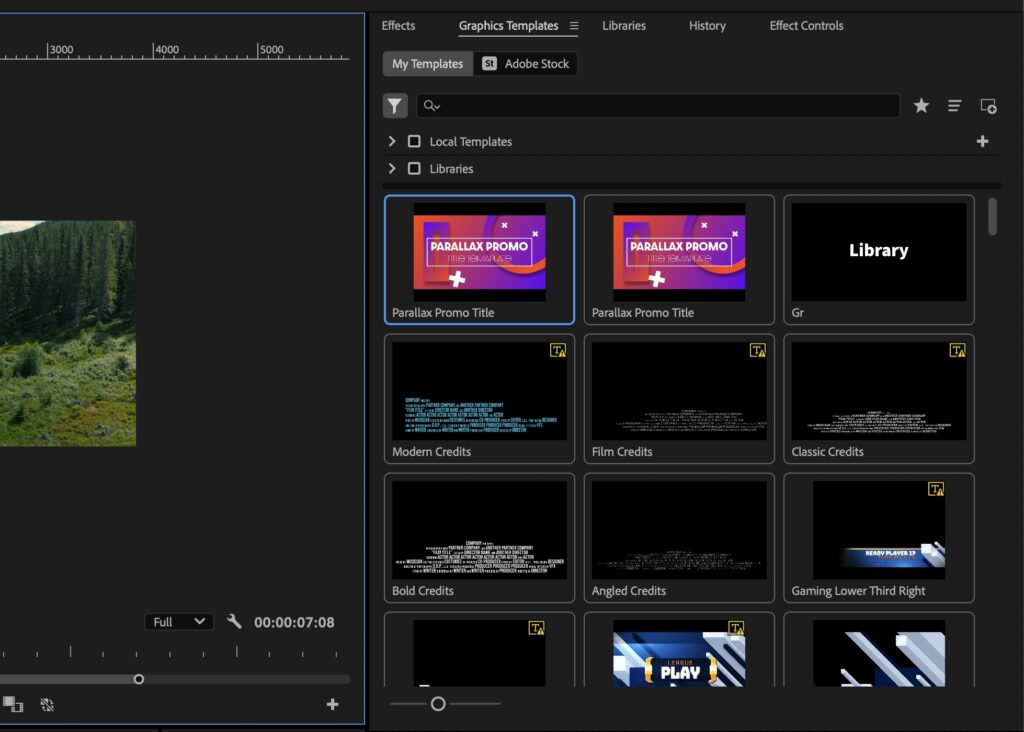
MOGRTs are a good fit for editors who want quick customization without needing to create original animations within After Effects. The simple explanation is that these are AE templates built for Premiere Pro editors.
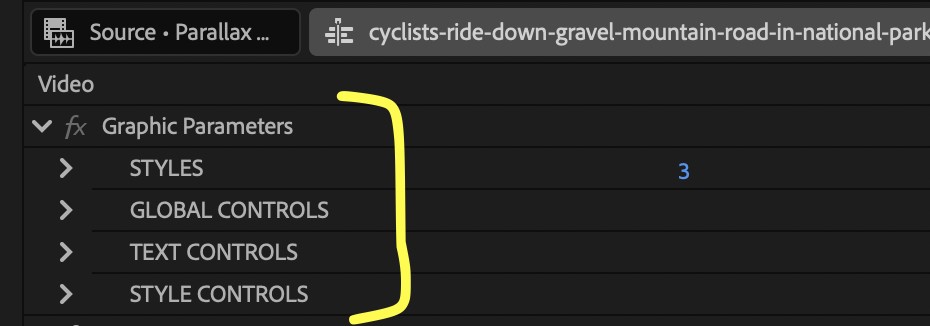
They save editors time and also allow beginners to create videos and projects that feel more experienced and professional. Once imported, MOGRTs allow you to edit text, swap colors, insert logos, and adjust timing without having to create a bunch of layers and new compositions.
How to use After Effects templates
Using After Effects templates usually follows the same basic structure that makes them easy to work with. You download the file, import it into After Effects, and customize the placeholders.
Trust me, when I started my After Effects journey, I was totally lost when it came to opening and using After Effects templates. But they really are simple to use once you get the hang of it. The details change depending on the template type, so I’ll walk you through two different examples of real templates and how they work inside After Effects.
Working with AEP templates
Message titles animation template
One example is this Message Titles animation template from the Storyblocks library, which lets you easily add animated text speech bubbles into a video.

This template includes animated text cards that slide into frame like a text on your phone would pop up.
When you download the file, you will receive an AEP project. Opening the project reveals a folder structure that includes a main composition, a text comp, and a render comp.
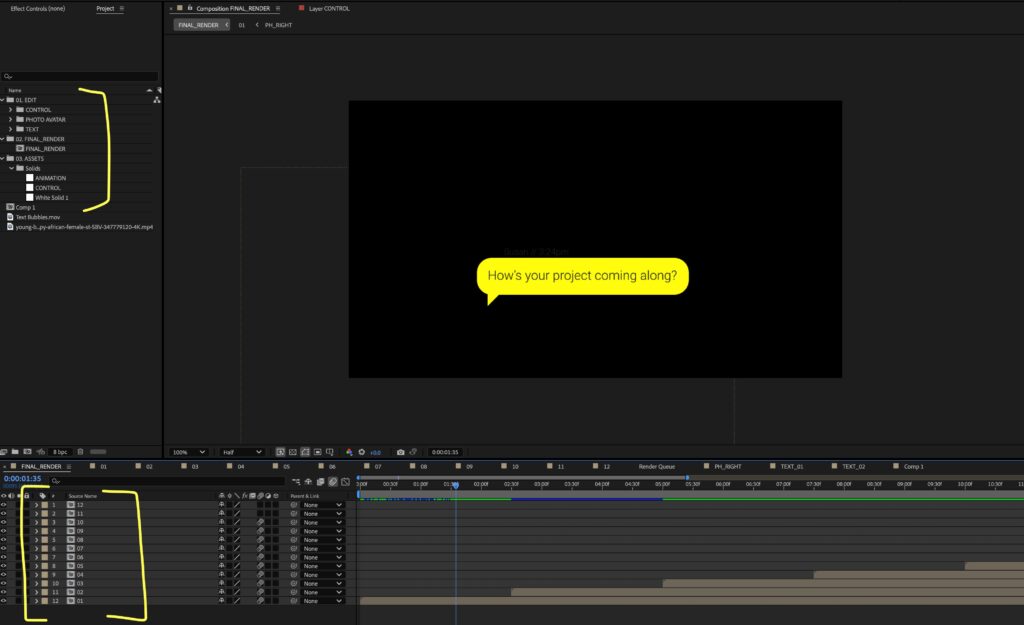
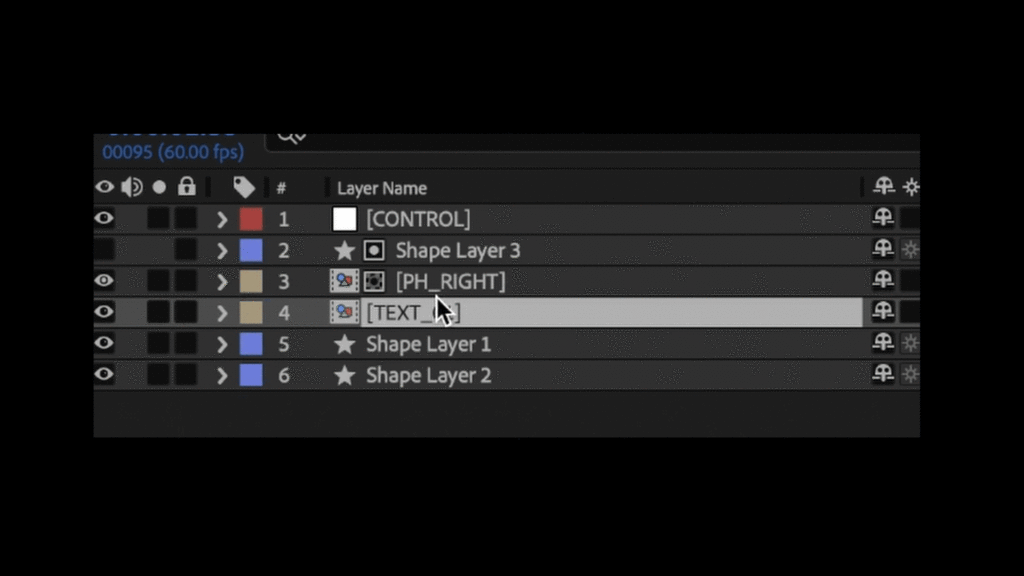
The first step is opening the text comp. Inside this comp, you can replace the placeholder text with your own words.
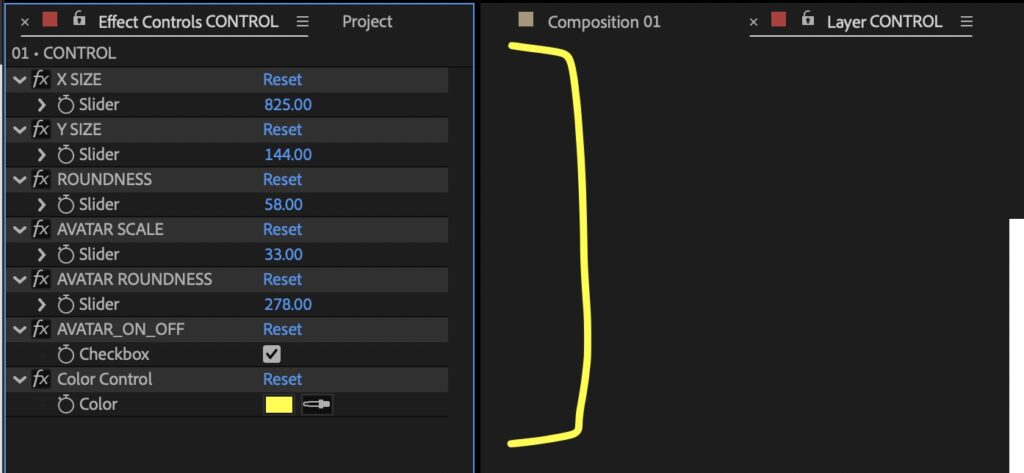
After that, you can adjust color controls inside the main composition. Many designers include a dedicated color controller that updates the entire animation at once.
This space also allows you to tweak individual elements like the size of the text box, the roundness, the scale, etc. This keeps your workflow clean and predictable.
Once the text and colors look right, you open the final render comp and preview everything together. After checking timing and alignment, you export your video. And it’s that simple!
Urban opener slideshow template
Another example of an AEP template in the Storyblocks library is the Urban Opener Slideshow template.
This project features fast cuts, bold typography, and animated image placeholders. When you open this template, you will see multiple comps labeled for each slide. Inside each comp, you drop your photos or clips into the placeholders.
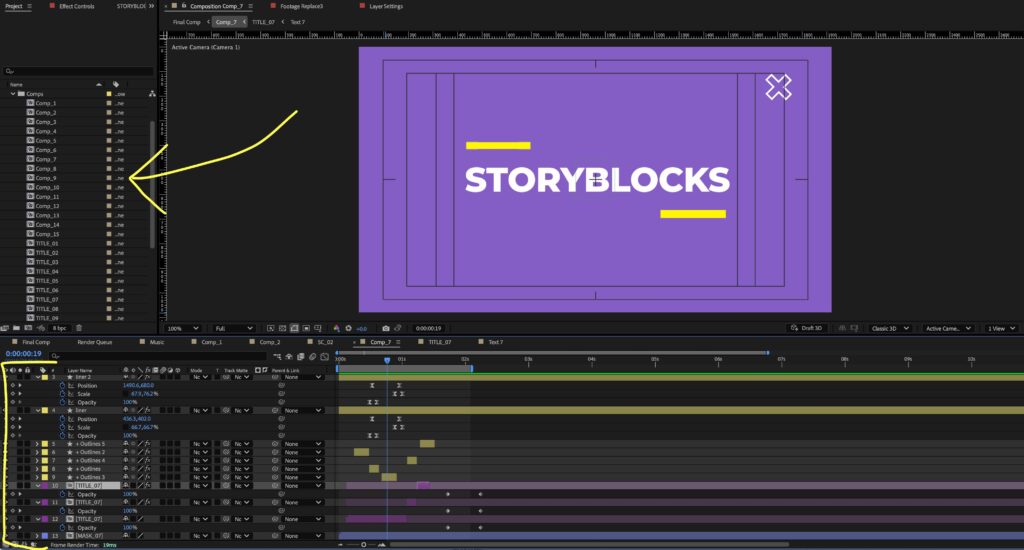
It helps to keep the original naming structure so you don’t lose track of anything. Many slideshow templates include built-in animation curves that respond automatically when you replace the images.
After replacing all the placeholder media, you can adjust global settings like background color, stroke color, and texture overlays. The final step is previewing the full opener and exporting it once the pacing feels right.
Most templates follow a similar structure. Designers of these templates want you to be able to open the project, replace content, adjust colors or timing, and export the results. Templates take care of motion, easing, masking, and effects so you can focus on the overall narrative of the motion graphic.
How to install a MOGRT File
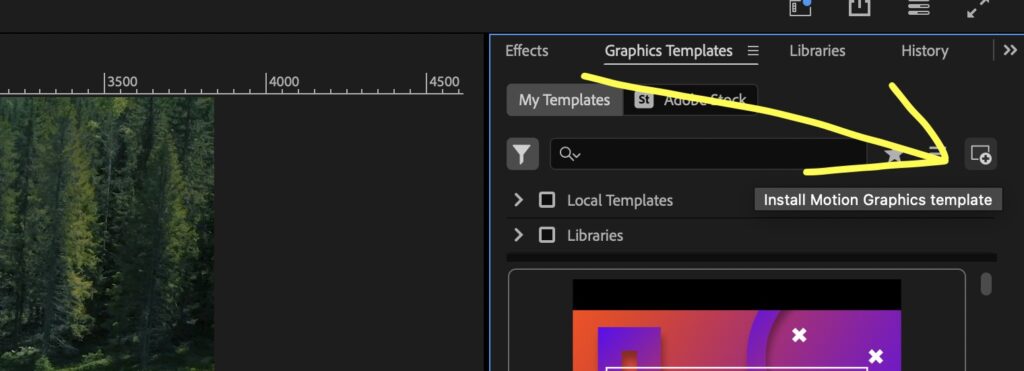
Many creators use MOGRT files because they don’t require you to know After Effects super in-depth, plus these templates work inside Premiere Pro.
To install a MOGRT file, download the template and drag it into the Essential Graphics panel. You can also install it by clicking the Install Template button inside the panel.
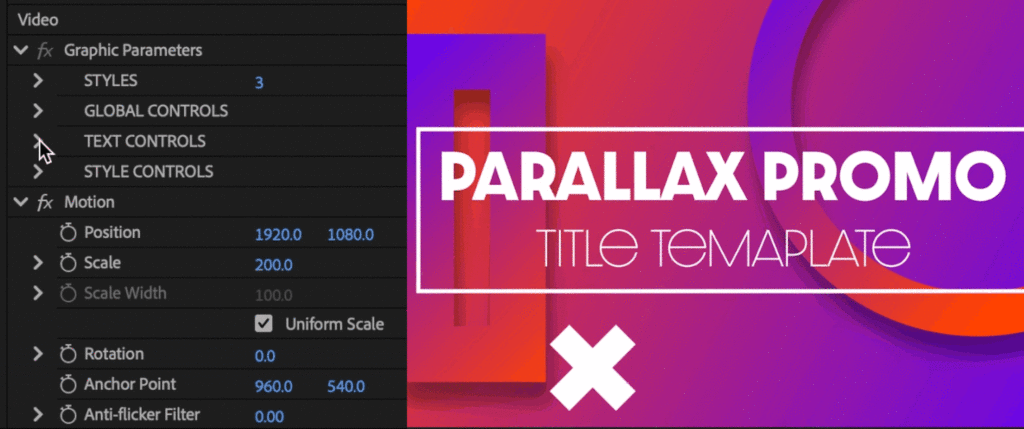
After installing, drag the template onto your timeline. This opens up the editable fields where you can change the text, color, logo, and other settings.


Comments
Post a Comment